
CoinGecko for Microsoft Excel (Official)
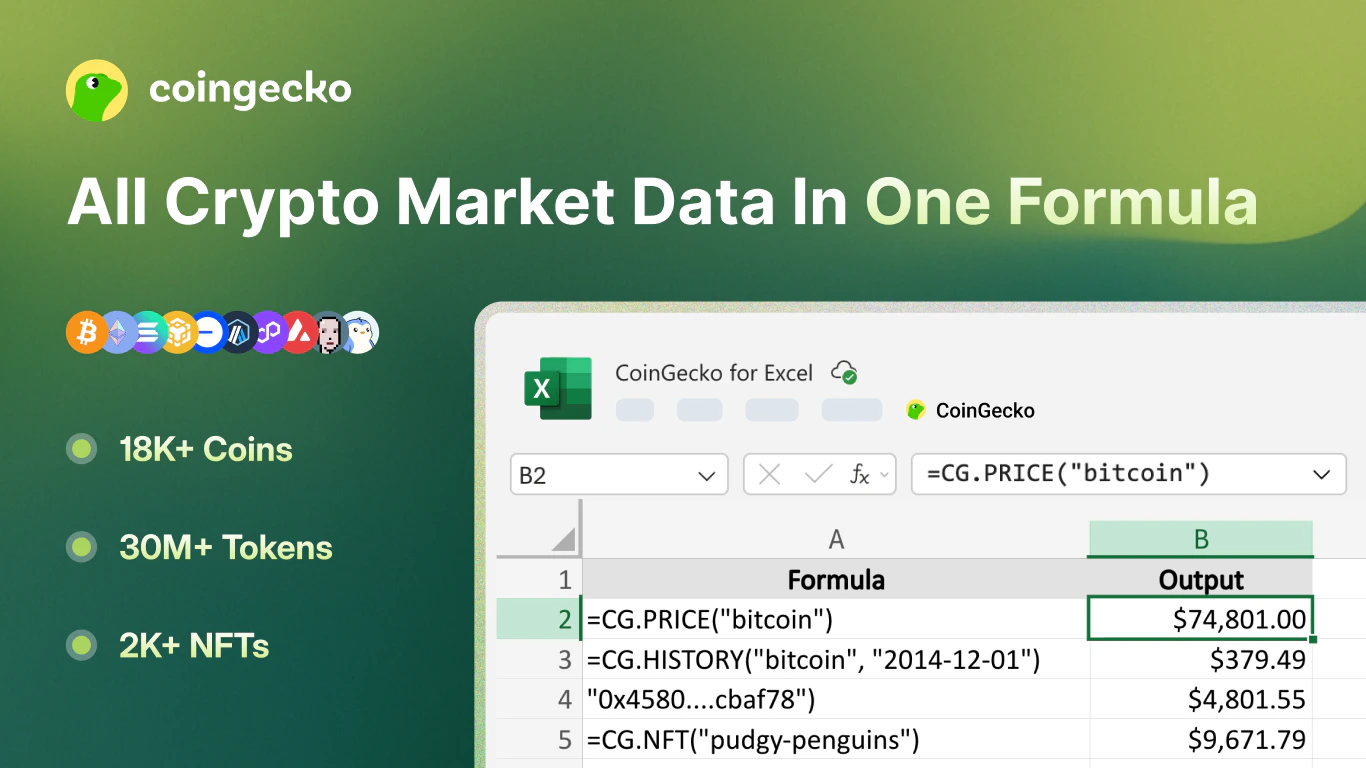
The CoinGecko Official Excel Add-in brings the world’s most comprehensive crypto data directly into your spreadsheet workflow — live prices, historical data, NFT floor prices, on-chain token prices, and market cap rankings, all refreshable with a single click.
Your privacy is our priority. The add-in only communicates with the CoinGecko API using your saved API key. No personal data is sent to any third party.
If you have any questions or feedback, please share with us here.
1. Quick Start
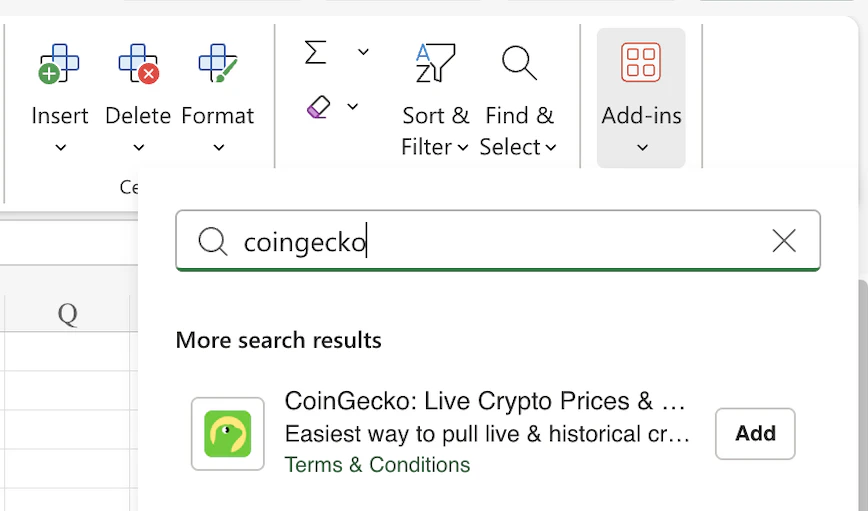
Install the Add-in
Search for ‘CoinGecko’ and Install directly from the Excel Add-ins store, or visit the Microsoft Marketplace.
Set Your API Key
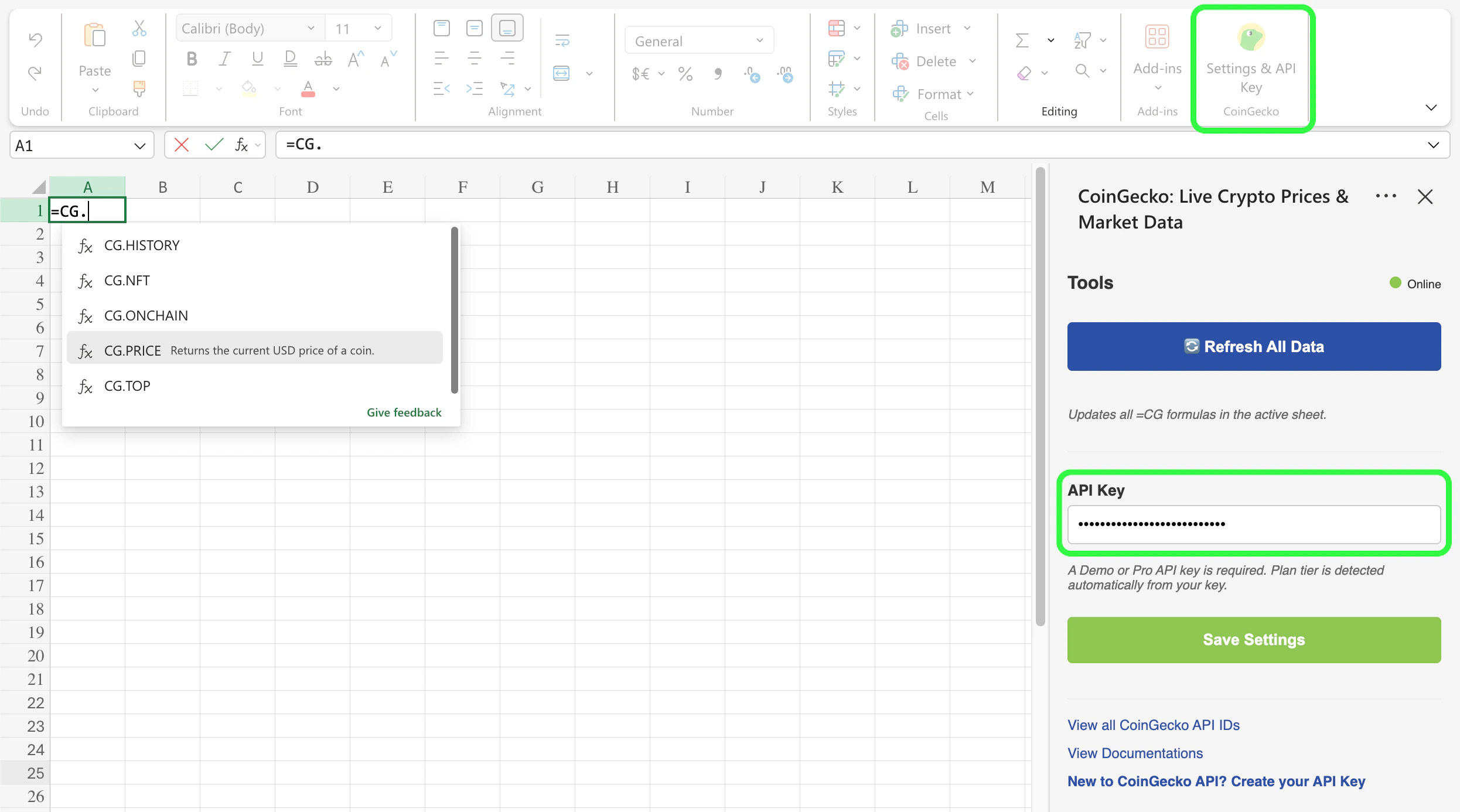
Enter your CoinGecko API key, then click Save Settings. A green status dot confirms a valid connection.
2. Formulas
All formulas use the CG namespace. Enter them in any cell like a standard Excel formula.
Pro Tip:
- Use the Coin ID (e.g.,
bitcoin,ethereum) rather than the ticker symbol for the most reliable results. - You can find the coin API ID in the URL on CoinGecko, i.e. coingecko.com/en/coins/bitcoin
- You can also get the full list via this endpoint or Google Sheet.
=CG.PRICE(id)
Returns the current USD price of a coin.
Returns: Number — current price in USD
=CG.HISTORY(id, date)
Returns the historical USD price of a coin on a specific date.
Returns: Number — USD price on that date
Date must be in YYYY-MM-DD format. Example: February 1, 2023 = "2023-02-01"
=CG.NFT(id)
Returns the current floor price (USD) of an NFT collection.
Returns: Number — floor price in USD
=CG.ONCHAIN(network, address)
Returns the current USD price of an on-chain token by its network and contract address.
Returns: Number — token price in USD
Common network IDs:
=CG.TOP(limit, [category])
Returns a ranked table of top coins by market cap.
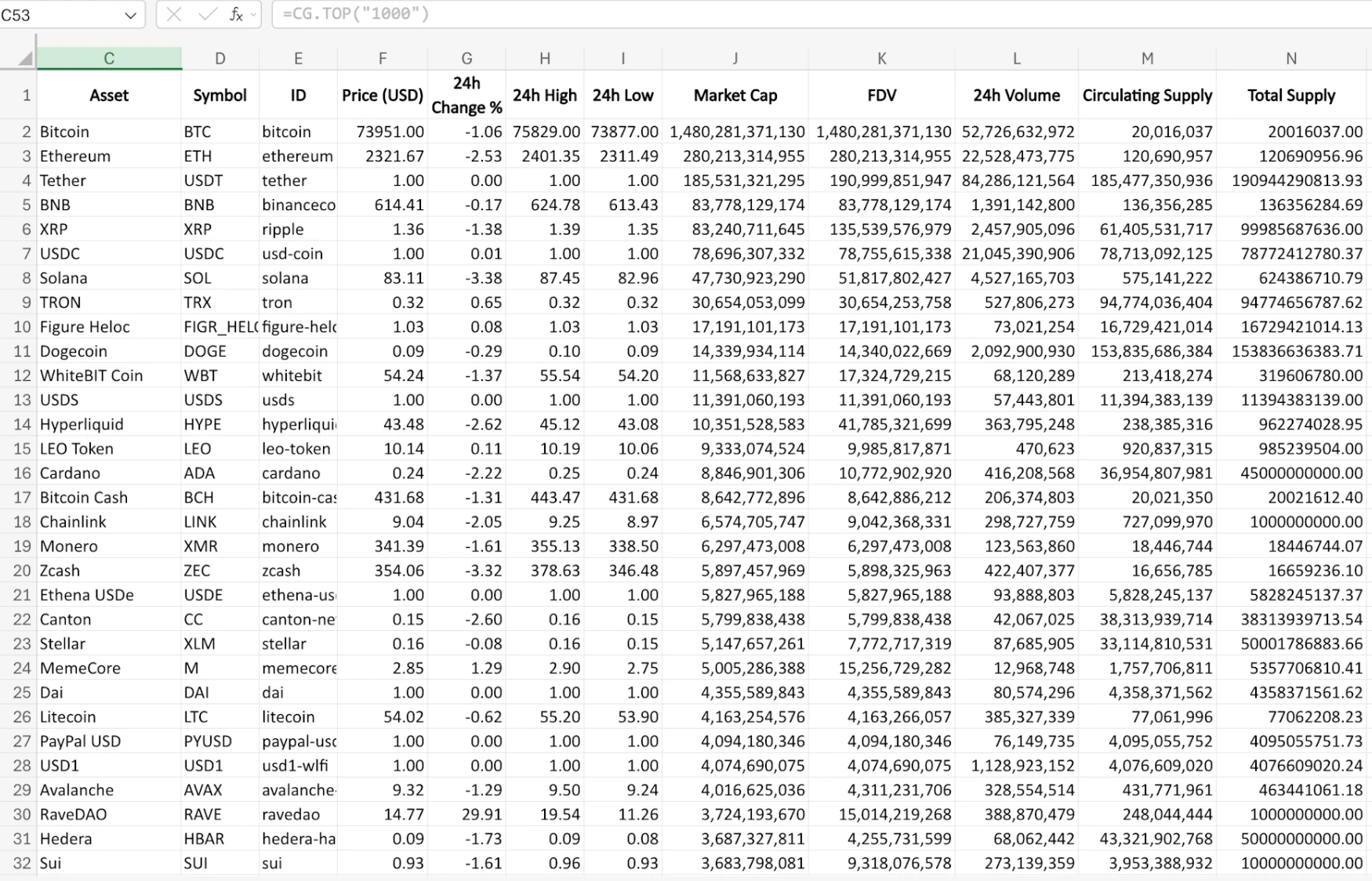
Enter =CG.TOP(...) in a single cell and let the results spill automatically into adjacent rows and columns. Do not pre-select a range.
Tip:
- Find category IDs by browsing the CoinGecko categories page and copying the ID from the URL.
- You can also get the full list via this endpoint or Google Sheet.
3. Taskpane Actions
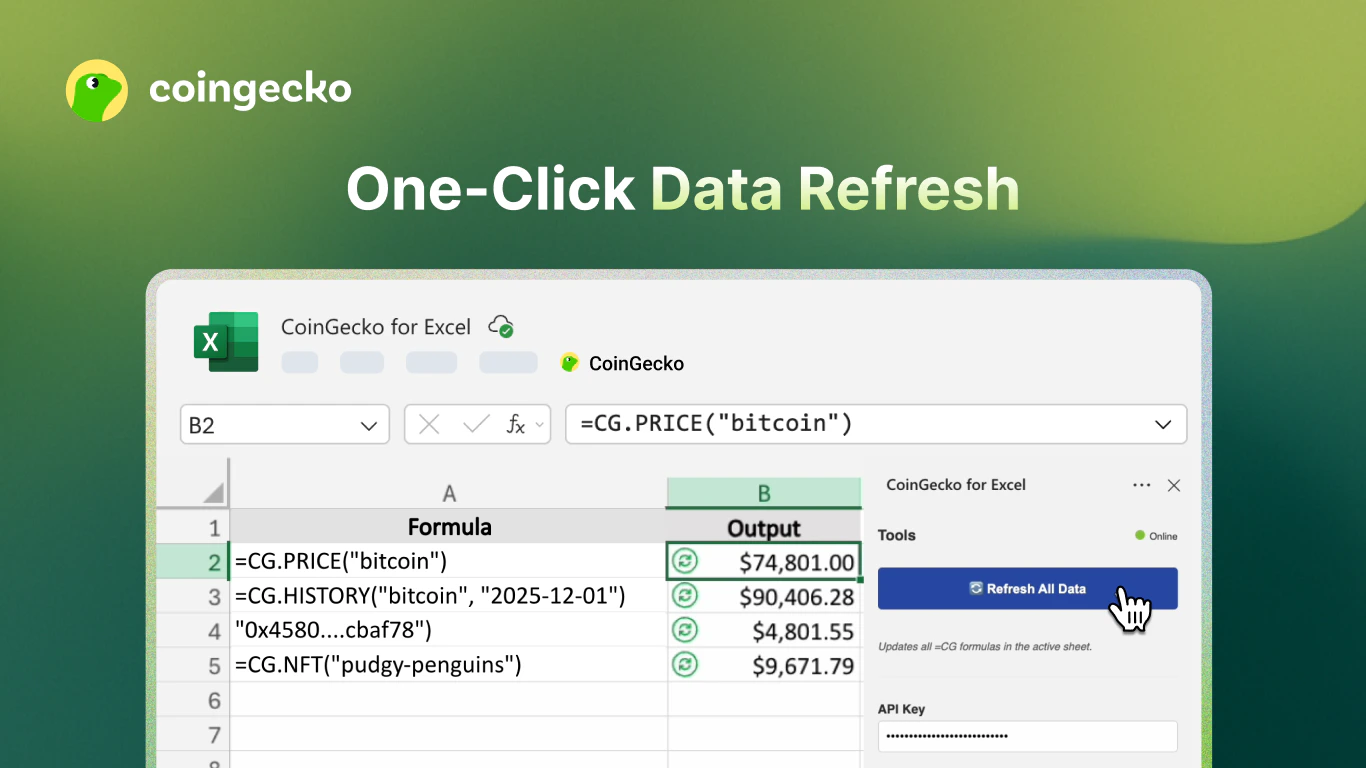
Refresh All Data 🔄
Clears the in-memory cache and forces all =CG.* formulas in the workbook to recalculate with fresh data from the API.
Save 💾
Saves your API key and plan selection. Automatically validates the key against the API and clears the cache.
4. Troubleshooting & FAQ
Why is my formula showing #NAME??
- Ensure the add-in is installed and loaded. The
CGnamespace is only available when the add-in is active.
How do I find a Coin ID or NFT ID?
- You can get the full list of supported CoinGecko API IDs here, or visit CoinGecko.com - the Coin ID can also be found in the “API ID” section on the right sidebar of the coin or NFT’s page.
Why am I seeing Error: Invalid API Key?
- Open the taskpane, re-enter your API key, and click Save.
Why am I seeing Error: Rate Limit — wait and retry?
- You have exceeded the API rate limit. Wait a moment, then click Refresh All Data in the taskpane.
Why does =CG.HISTORY return no data?
- Confirm the date is in
YYYY-MM-DDformat and that the coin existed on that date.
Why does =CG.TOP only show one cell?
- Make sure the cells below and to the right are empty so the array can spill. Excel requires free space for spill ranges.
What is your privacy policy?
- Please view the full details of our privacy policy here.
How do I share feedback?
- Please share feedback with us here.